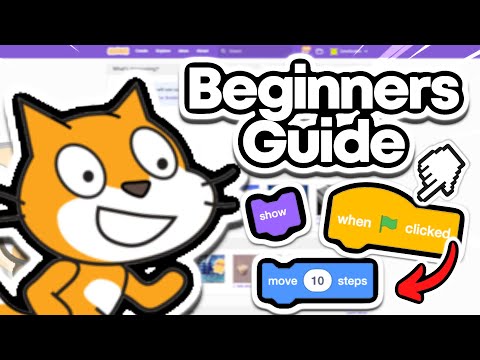
🕹️ Beginner's Guide to Creating Your First Game in Scratch
In this tutorial, you'll learn how to create a simple game using Scratch, an intuitive visual programming language. Follow the steps below to make your game!
🚀 Getting Started
- Access Scratch:
- Go to scratch.mit.edu.
- Create an Account: Essential for saving your projects.
🎨 Understanding Sprites
- What is a Sprite?:
- A Sprite is a visual character/image in your game.
- Manipulation:
- Rename, change position, size, and direction of Sprites.
- You can program actions applying to Sprites.
🛠️ Basic Coding Steps
- Starting Events:
- Drag the "when green flag clicked" block into your code area.
- Basic Motion:
- Add move 10 steps block for movement.
- Test by clicking the green flag.
🎮 Create a Simple Movement Code
Create Character Movement
- Grab Forever Loop:
- Drag a forever block into your code.
- Control Movement:
- Use if key pressed blocks for movement.
- Code for moving right:
if (key space pressed) then change x by 10.
- Add for left, up, and down movements using 'A', 'D', 'W', and 'S' keys.
🙌 Adding Sprites and Collectibles
- Choose New Sprites:
- Select and add a new Sprite (e.g., banana) for the player to collect.
- Setup Collection Logic:
- Code the banana to move to random positions when touched by the player:
if touching (player cat) then go to random position.
- Code the banana to move to random positions when touched by the player:
📊 Implementing Score
- Create a Variable:
- Name it "score".
- Set Initial Score:
- Set score to 0 at the start using:
when green flag clicked then set score to 0.
- Set score to 0 at the start using:
- Update Score:
- Add
change score by 1when the banana is collected.
- Add
🎨 Design Game Background
- Backdrop Customization:
- Paint a background design using the drawing tools available.
🚧 Adding Challenges (Enemy Sprite)
- Create an Enemy:
- Select or paint a new Sprite (e.g., bat).
- Movement Logic:
- Program it to move towards the player:
forever move 2 steps and point towards (player).
- Program it to move towards the player:
💀 Implementing Game Over Logic
- Detect Collision with Enemy:
- Code:
if touching (enemy) then stop all.
- Code:
- Broadcast Game Over Message:
- Use the broadcast feature to display “You Died” when the player collides with the enemy.
🎈 Adding Sounds and Animation
- Incorporate Sounds:
- Add sound effects when collecting items or dying.
- Animate Characters:
- Use next costume block for visual effects (e.g. running animation).
📦 Duplicating Elements
- Easily duplicate Sprites and code to expand your game further.
🎥 Final Steps
- Testing:
- Click the green flag to run your game and test for fun!
- Save & Share:
- Don’t forget to save your project and share it with friends!
🎉 Conclusion
Congratulations! You've now created a basic Scratch game. Explore further customization and add new features as you get more comfortable. Enjoy game development!
📬 Never miss a ZonxScratch video — every new upload summarized in your inbox.
Follow free